1. Log in to Drayeasy https://admin.drayeasy.com. Then go to Dispatch Tab
2. Update Dispatch Status
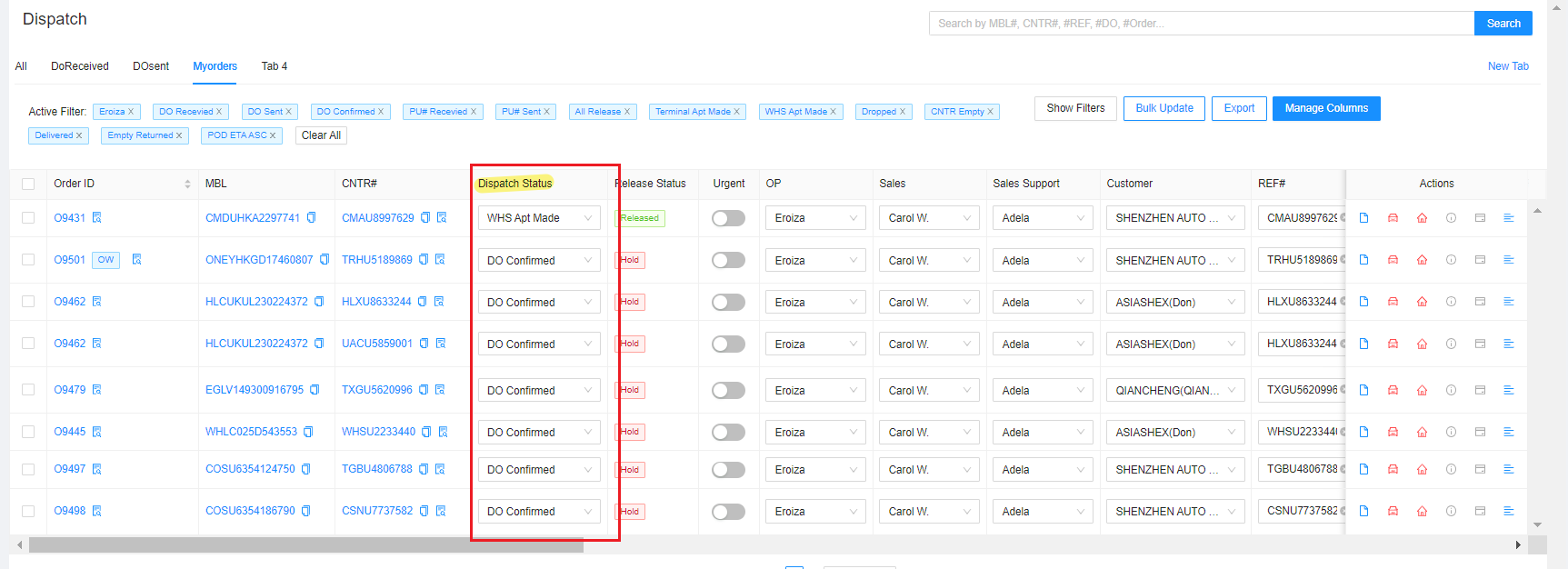
Here are the status on the drop down list and when to use.
DO Received - When you create New Order, the Dispatch status will automatically be DO Received.
DO Sent - change to this status once you sent the DO to Trucker
DO Confirmed - When trucker confirmed receipt of the DO
PU# Received - when customer already provided the Pick-up number to you for ramp containers
PU# Sent - when you already sent to Pick-Up number to trucker
All Release - If Freight, Custom and is already available/discharge at terminal
Terminal Appt Made - When trucker already set-up or secured pick-up appointment date and time at terminal
WHS Apt Made - When Warehouse confirmed date and time of delivery
Dropped - when container was delivered via Drop Off.
CNTR Empty - When Warehouse advised that container is now empty and is ready to pick-up
Delivered - When container was already delivered via Live Unload and empty is with trucker
Empty Returned - When empty container was returned to terminal.
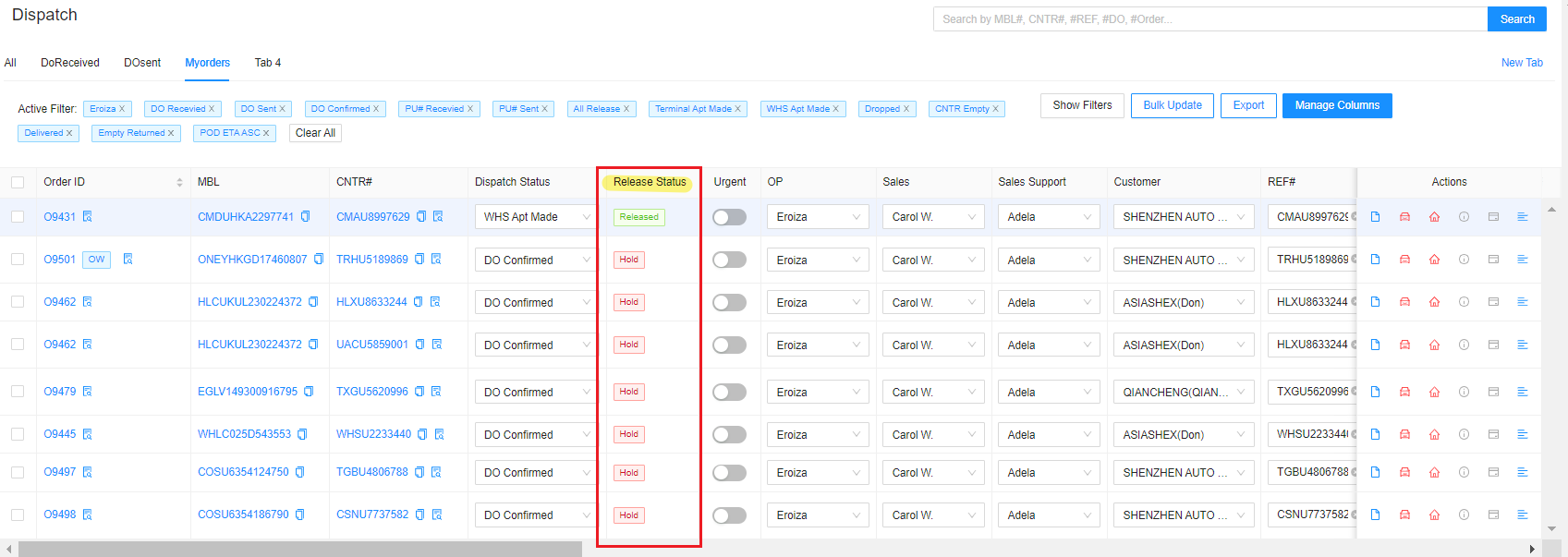
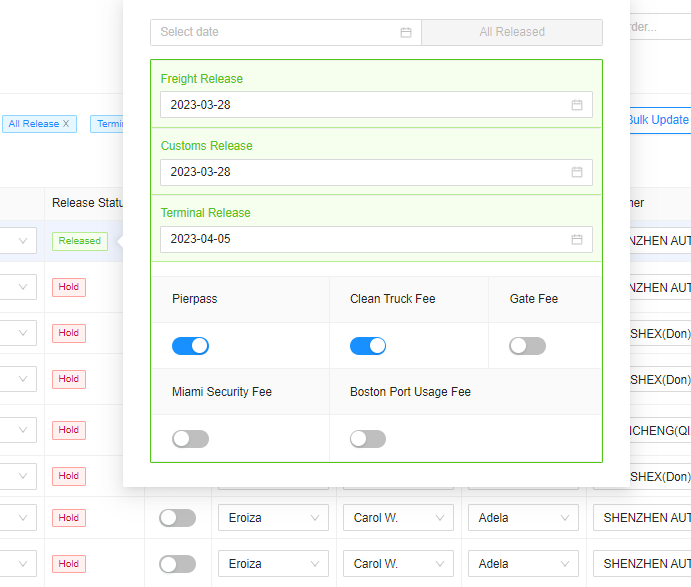
3. Update Release Status. Release Status contains Freight Release, Customs Release and Terminal Release.
4. Update the Date when they are release. and mark the Fees paid like Pierpass, Clean Truck and Gate Fee.
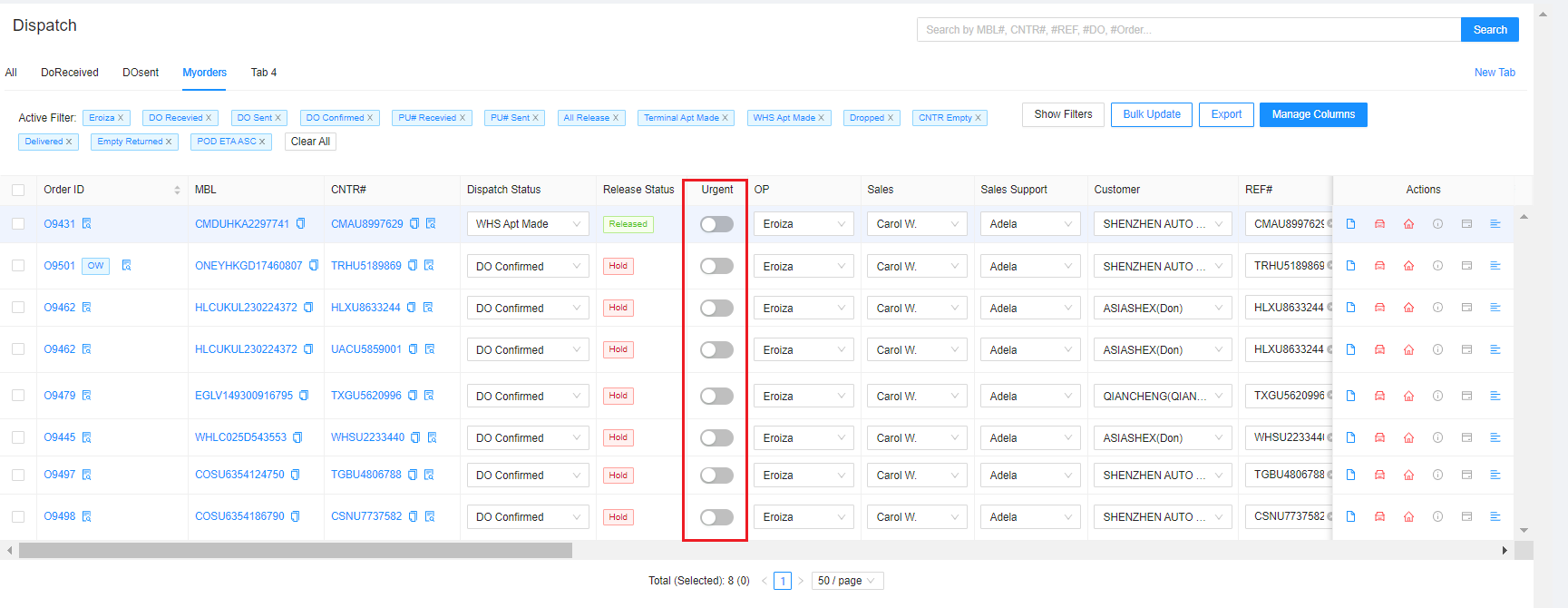
5. Mark Urgent if container or Sales person advised container is Urgent.
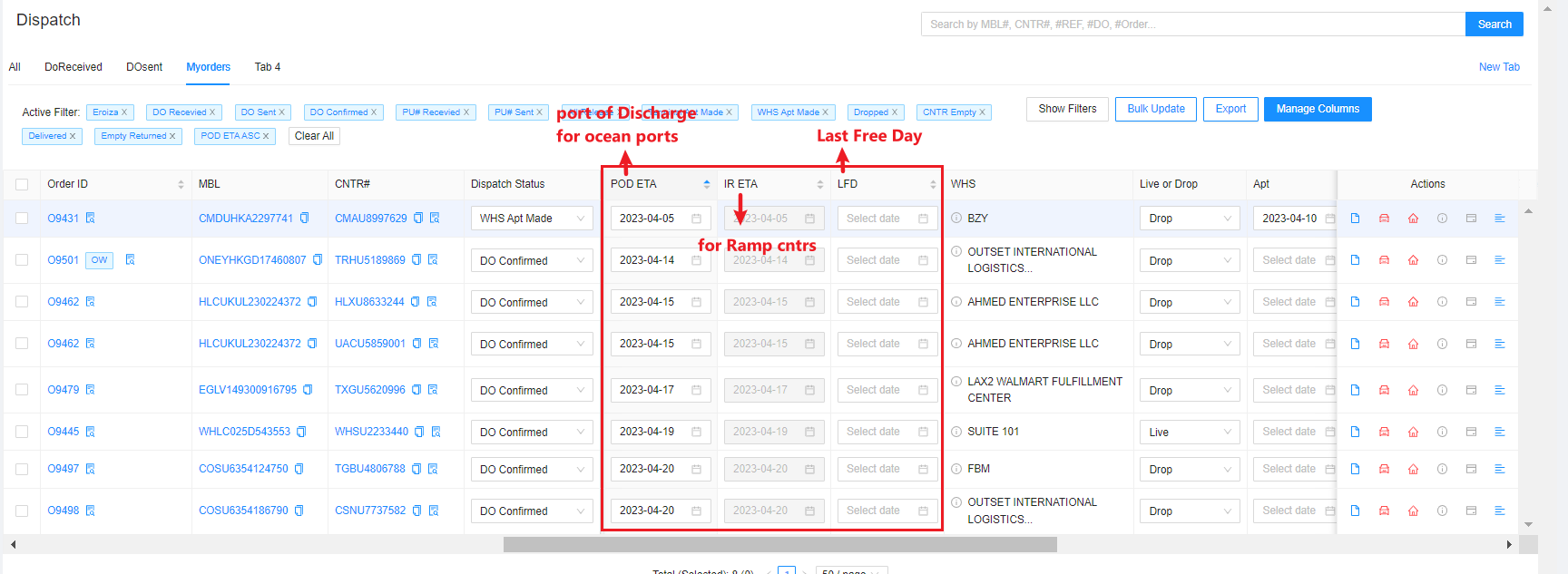
6. Scroll to right and you will see the POD, R ETAs and LFD. Track status of your containers in Terminal or Shipline website and you will see the Arrival ETA at Port of Discharge or at Intermodal Rail. Update the Date if ETA changed.
Last Free Day/Date will appear at terminal/ Shipline website once container is already available to pick-up/discharged.
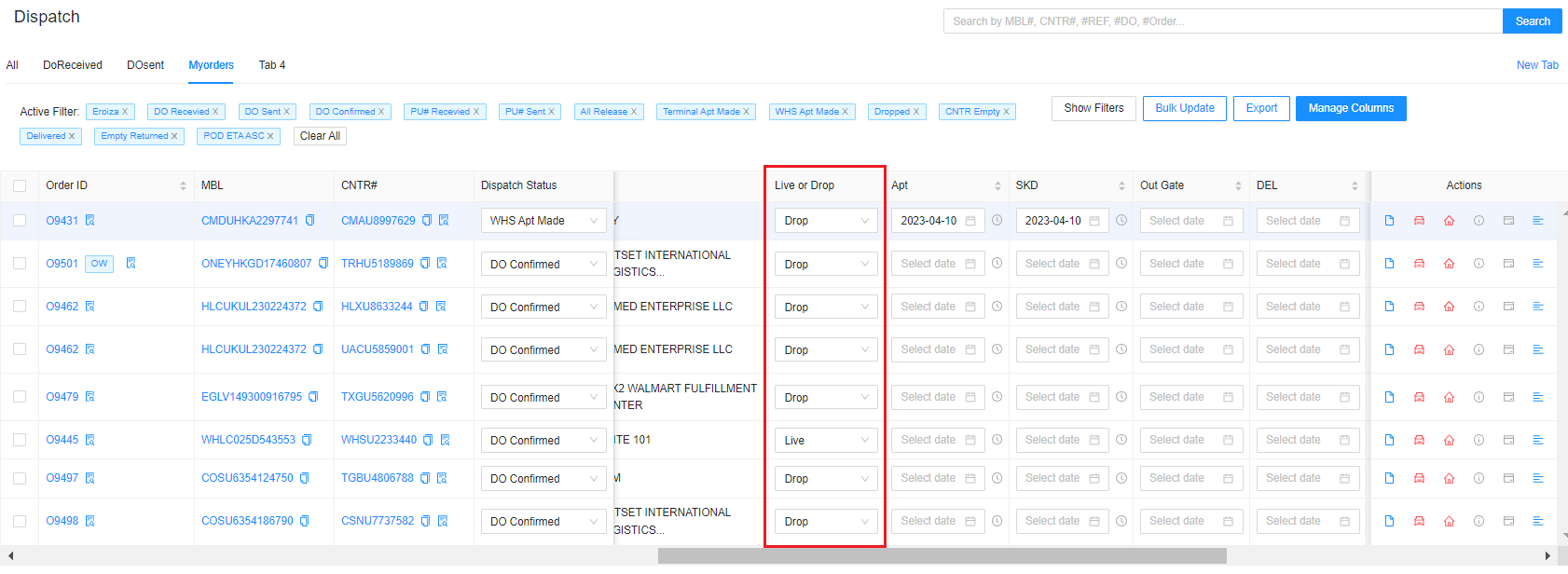
7. Select if Live unload or Drop Off. You can confirm this with the Sales Person.
8. Update Appointment Date and Delivery Schedule like below.
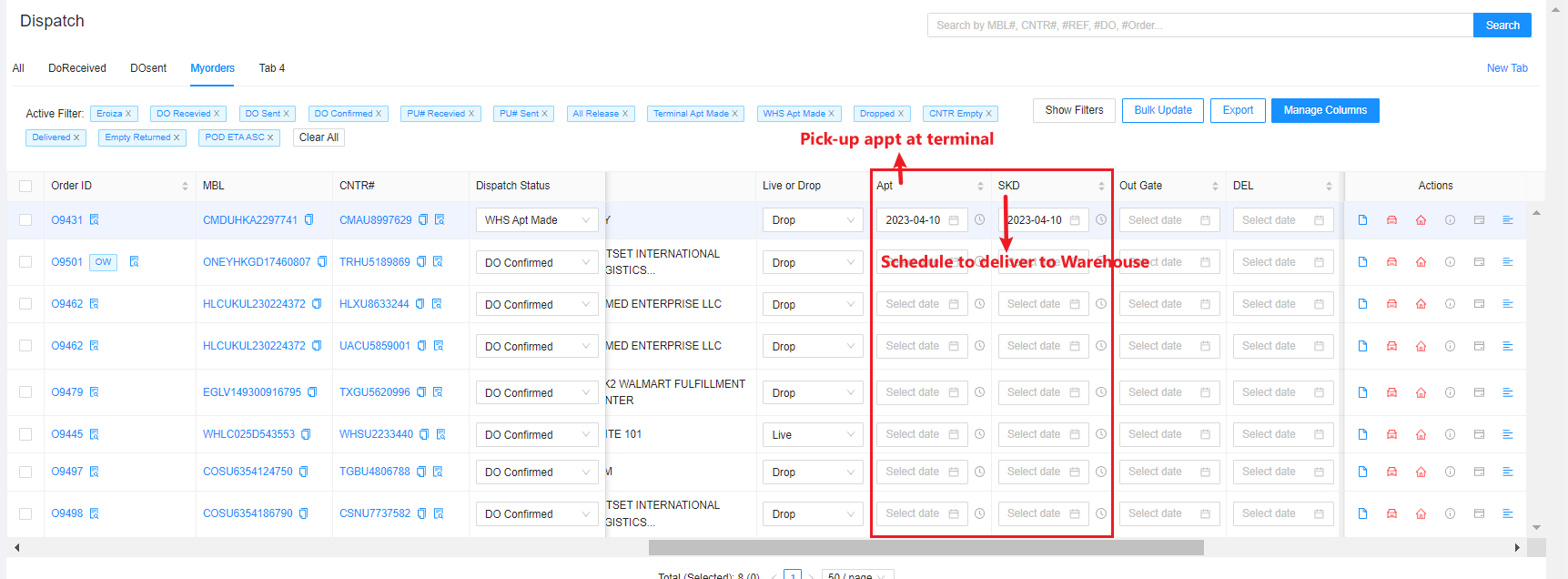
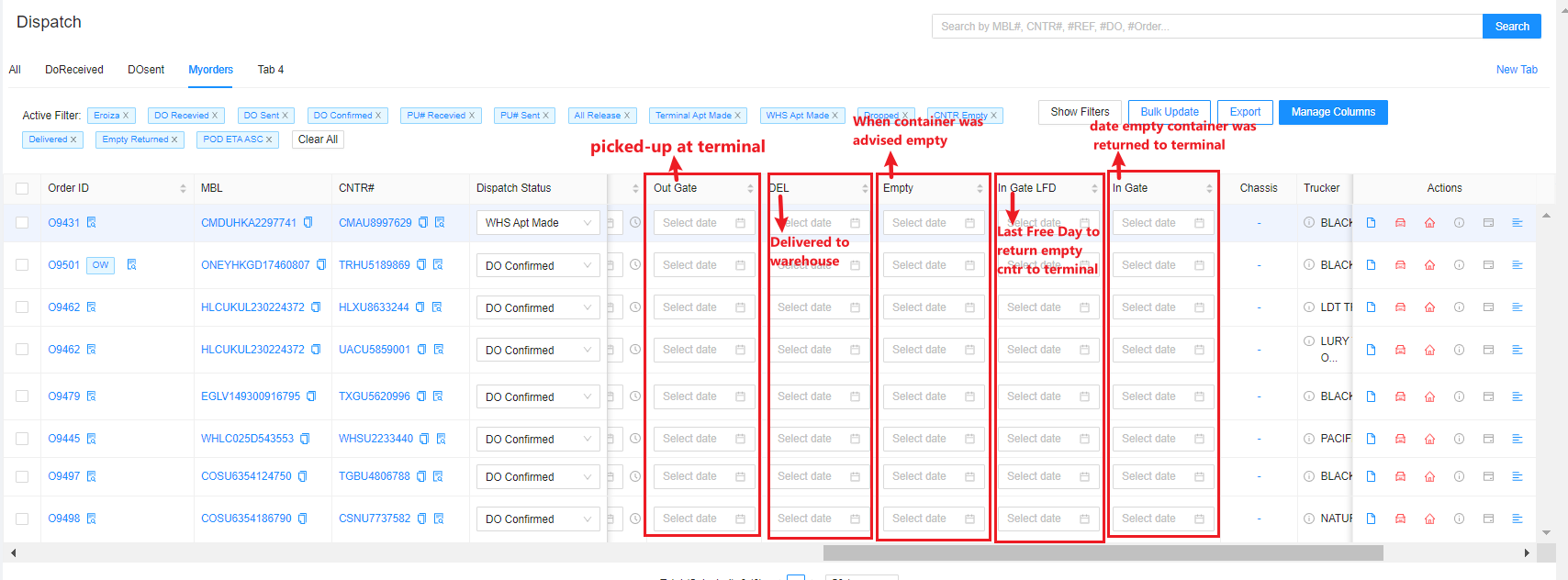
8. Update below columns as well
9. Update Trouble Status if there's any. 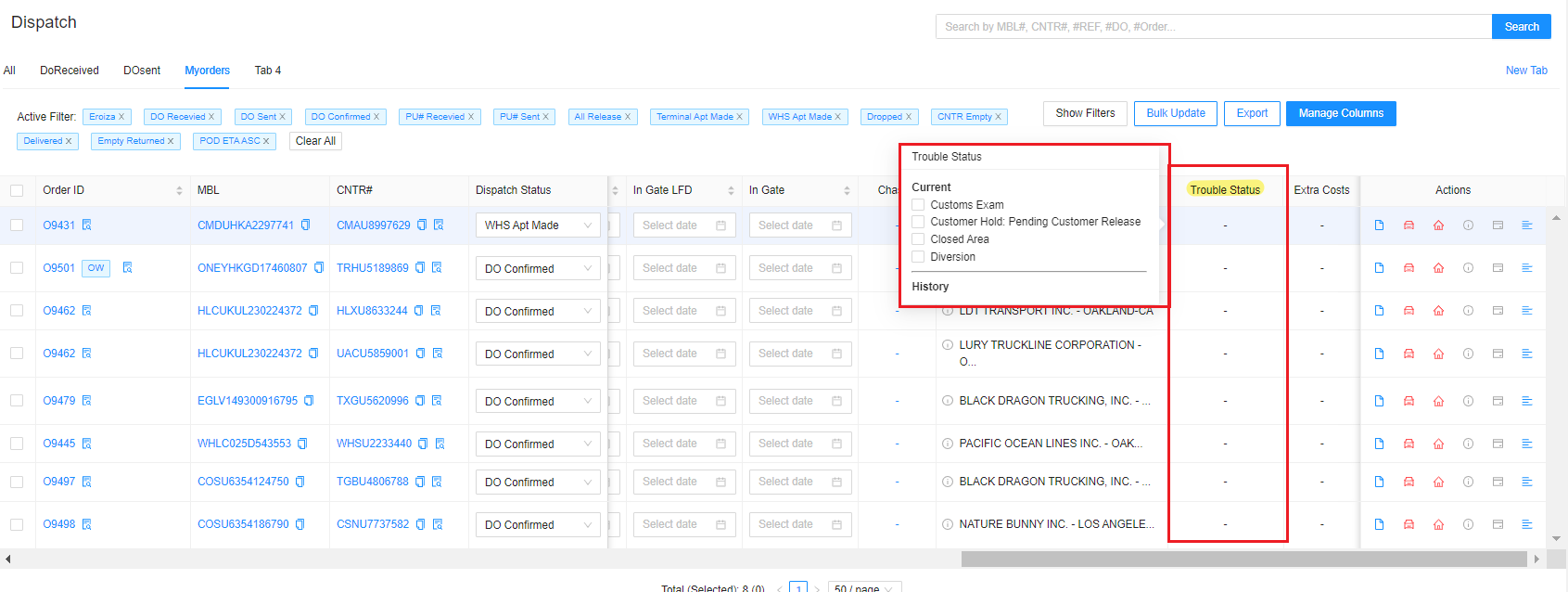
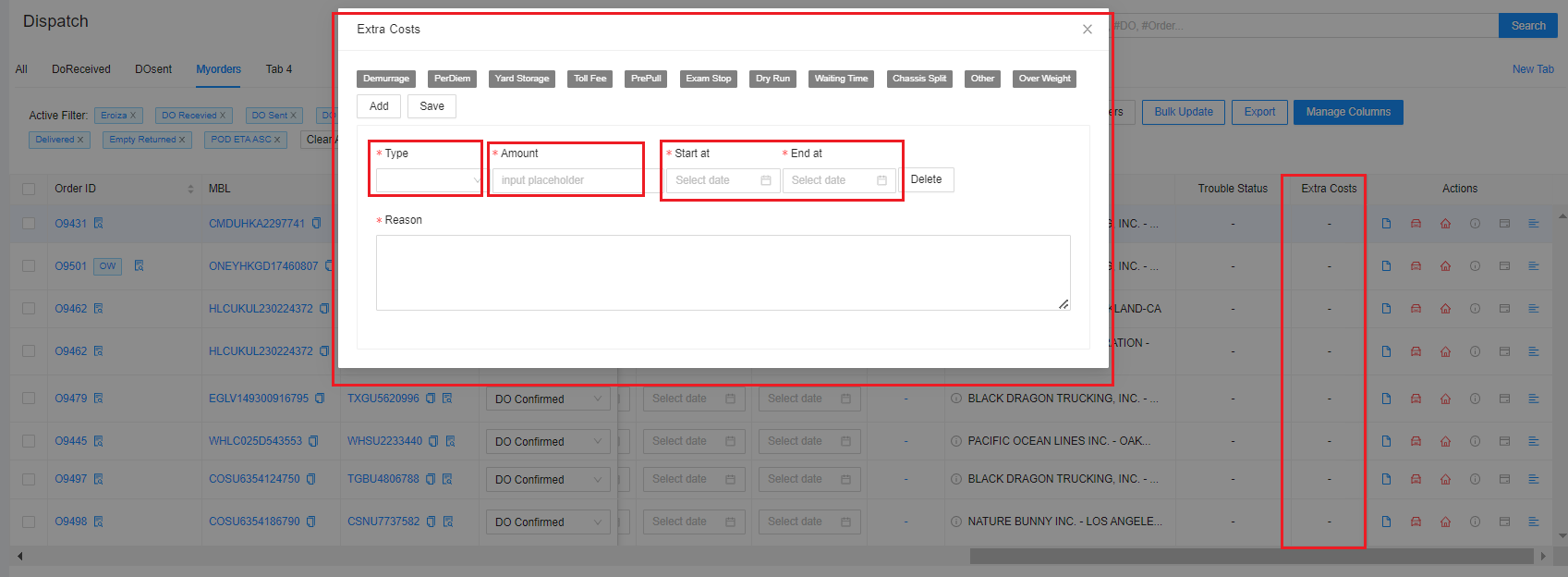
10. Record Extra Costs such as Pre-pull Charge, Storage charge, Demurage or Detention. Click Add and choose the Extra Cost , enter the mount, date started and end. Then click Save.