How To check Container Availability, Gate Out and Empty Returned
Eroiza
2022-12-08 13:05:58
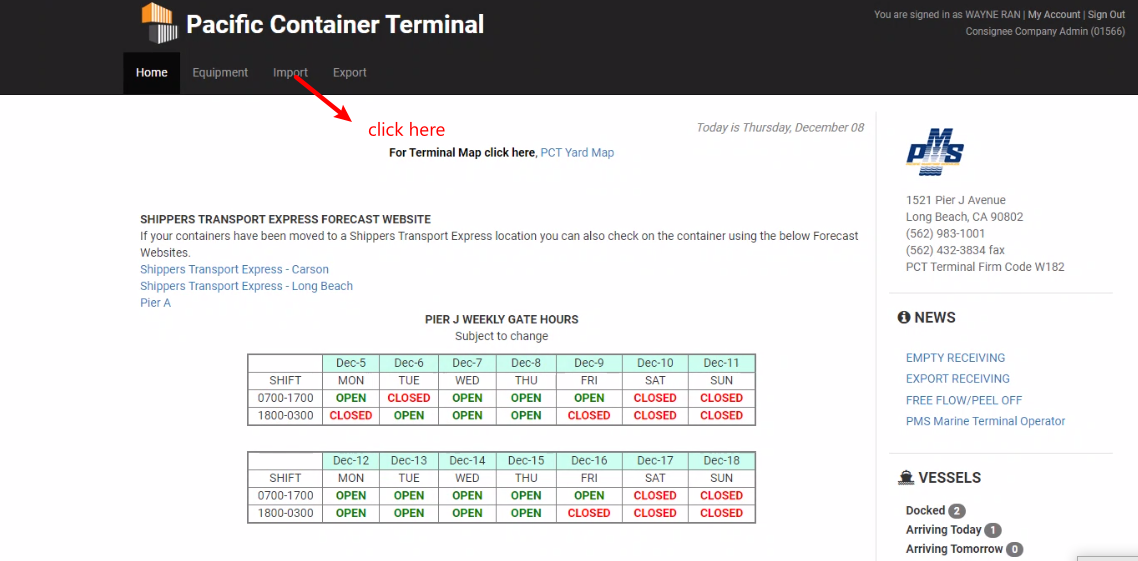
1. Log in to the Terminal of the Container (Ex. H572, WAC8, W182, etc.)
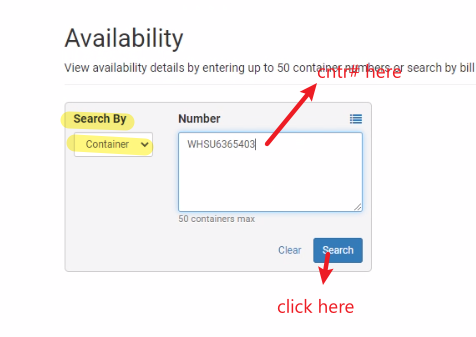
2. Input container number in the Container Search Box.
Ex. ~~~H572 - BNSF
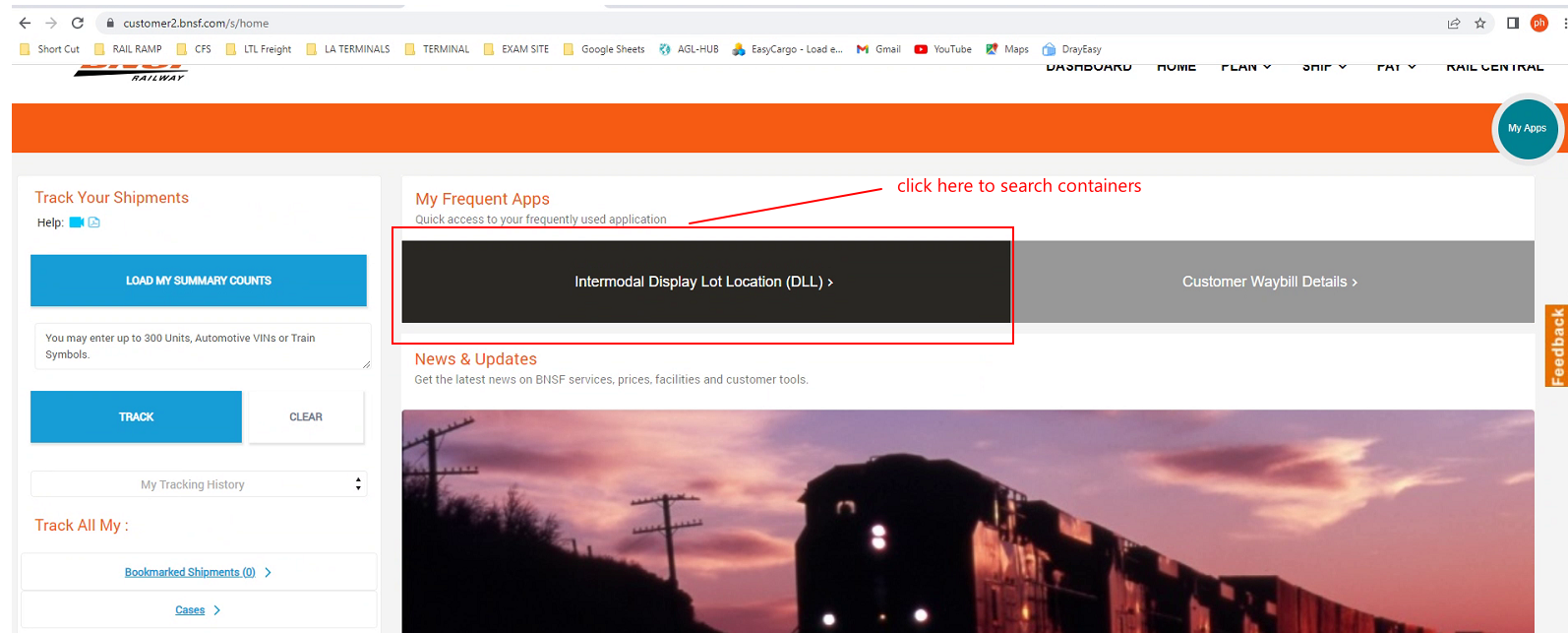
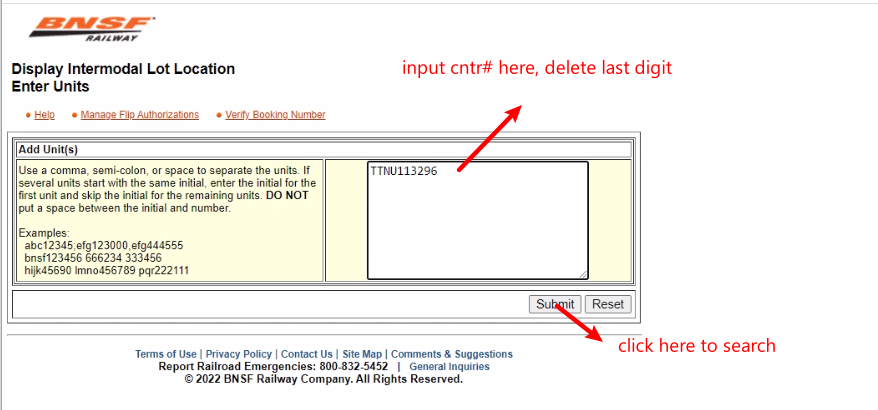
~~~ W182
Log in and click import tab
3. Look for the terminologies to check status of containers
Terminologies
- These are the keywords to look-out for to know the status of Containers
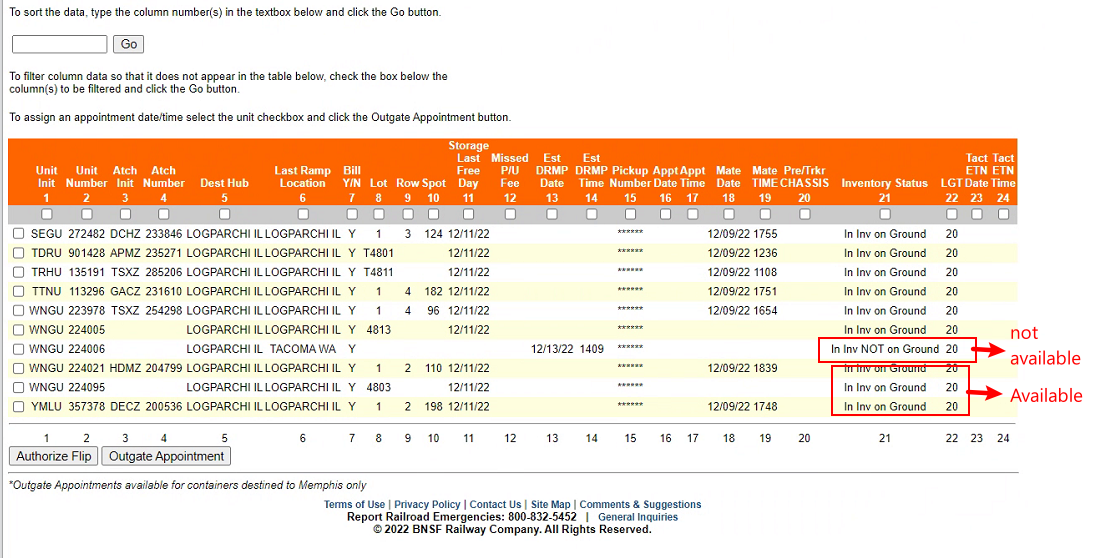
* * * Container Available/ Terminal Release
- Load Van Notification / Load Notification /Load Notified
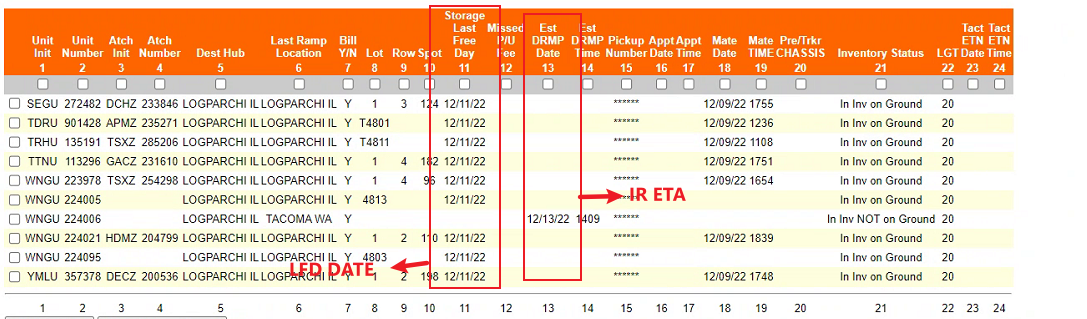
- In-Ground
- Container is available to be released
- Off Dock (case to case basis)
- Deramped (terminal web)
- Available
- Available to pick-up
- In Yard Grounded
Ex:
* * * Gate-Out or Picked Up (You can check this using MBL#)
- Full container is withdrawn by consignee from Pier/Terminal
- Container to Consignee
- Out Shippers owned full
- Gate out / Outgate
- Discharge to Customer
- Departure (mode of transportation is Truck)
- Full container to consignee
- Pick up By Merchant haulage
- Load Outgate
- Gate out from Final HUB
- Import truck departure from final ramp to customer
Ex: 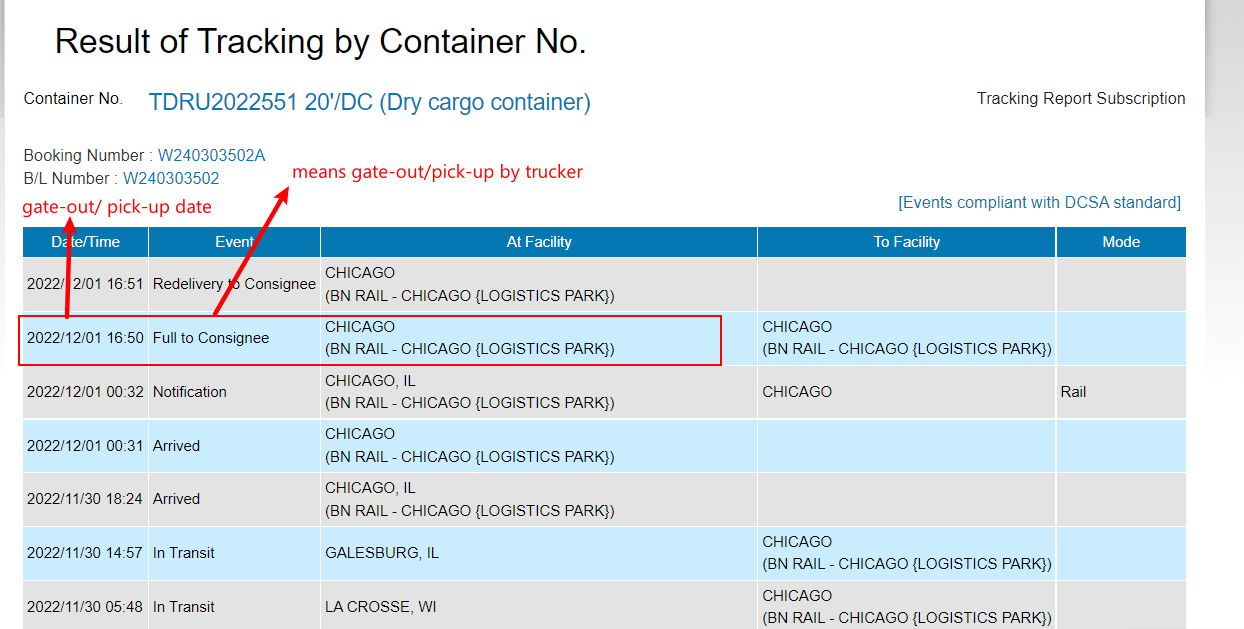
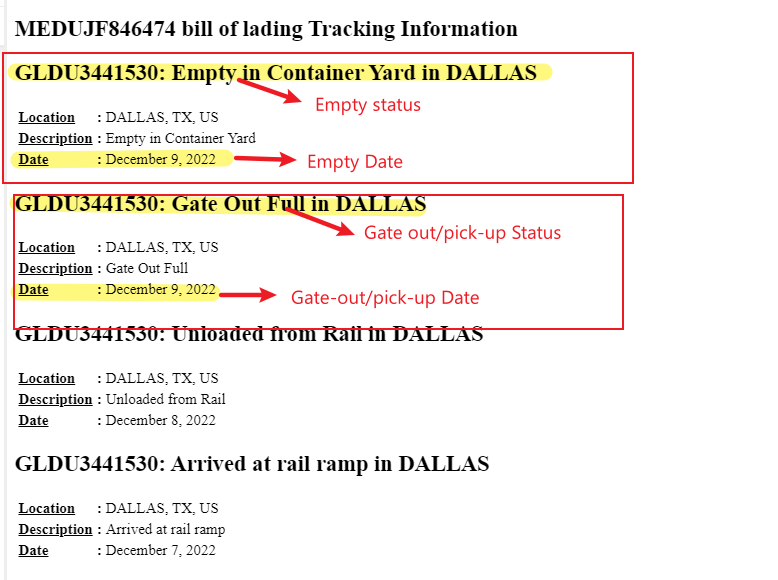
* * * Empty Return
- Empty return to
- Empty shipper
- Gate in Empty
- Return from consignee
- Empty in Depot
- Delivered
- Empty in container yard
- empty equipment returned
- EMPTY CONTAINER DISCHARGED FROM VESSEL OR GATE IN TO PIER/TERMINAL/OFF-DOCK DEPOT
- Empty Available
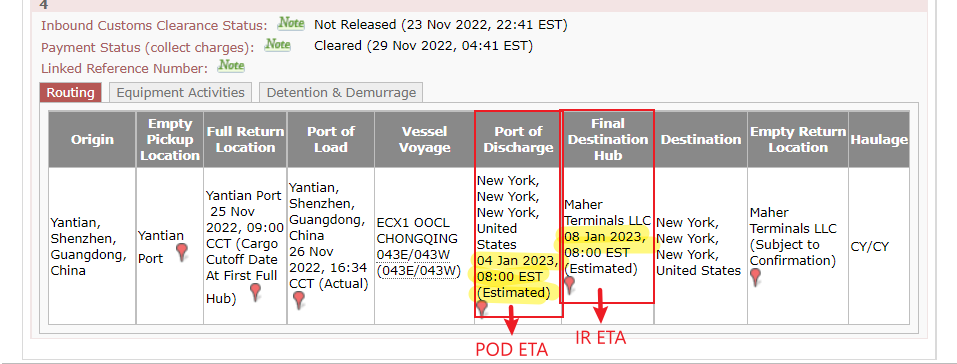
* * * POD ETA Date- Port Of Discharge ETA
* * * IR ETA Date - ETA to the Final Port
Example: OOLU2035119771
(Tracking by MBL#)